| Price | $1.49 |
|---|---|
| Category | Tools |
| Version | 2.1.0 |
| Developer | Locnet |
| Added | Nov 16th, 2011 |
| App Views | |
| Votes | 0 votes |
| Google Rating | |
| Ratings | 43 |
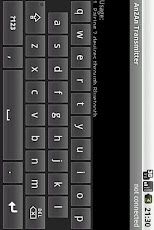
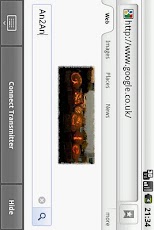
Redirect keypress from one device to another device through Bluetooth or WiFi/Network, allow using an android device as keyboard/gamepad of another android device. Latest version also support mouse and analog joystick add-ons.Recommend to check compatibility with demo version before purchase and please contact us for any problem ([email protected]). Only need to buy ONCE, you can install the app to multiple devices AFTER the purchase is settled.Credit to Deen0X for the promotional video and tutorial: http://forum.openhandhelds.net/index.php/topic,125.0.htmlBenefits========- If you have a phone with physical keyboard or gamepad (e.g. Xperia Play), you don’t need to buy separate input devices for your tablet.- By using another device to input, screen is not blocked by onscreen keyboard and your finger so you get better view.- Some keyboard/gamepad solution (e.g. Wiimote, Sixaxis) only work with certain types of device, this allows using a compatible device as a "bridge" so you can use those input solution with any device.- Touchscreen handling consume CPU times, by sharing workload to another device you can get some speed improvement.Compatibility=============This app works with most hardware keyboard/gamepad (e.g. dpad or Xperia Play buttons) and key-based software keyboard (e.g. our GameKeyboard app). It may not work well with text-based soft keyboard which directly manipulate input field text. Behaviour will be affected by active soft keyboard on transmitter, trying switching to another soft keyboard when having problem.Instructions============Suppose user wish to use a phone (transmitter device) as the keyboard of a tablet (receiver device).Preparation (Only for the first time):(Some procedures only applied to Bluetooth connection mode)1. Pairing the devices through Bluetooth, usually under system’s Wireless and Network settings page.2. Install this app to both devices (install demo version on receiver device if have problem installing this app to both devices).3. On the receiver device, open "An2An Keyboard" app.4. Select "Menu->Setup Receiver"5. Follow instructions to activate the "An2An Receiver" soft keyboardUsage:(Some procedures only applied to Bluetooth connection mode)1. Turn on Bluetooth on both devices.2. On the transmitter device 2a. Open "An2An Keyboard" app. 2b. Select "Menu->Start Transmitter", wait for the status on upper right changed to "waiting".3. On the receiver device 3a. Make sure "An2An Receiver" is selected as the current input method. 3b. Call up "An2An Receiver" soft keyboard (e.g. tap on an input field, or holding "menu" key on some devices). 3c. Tap "Connect Transmitter" button. 3d. Select the transmitter device from the popup list.4. Wait for connection establish. Depends on the hardware and signal quality you may need to retry several times. If you have connection problem, try restart bluetooth on both device and/or pairing the devices again.5. On the transmitter device 5a. (Optional) Call up the desired soft keyboard if needed. 5b. (Optional) Better hide the input field by "Menu->Toggle Input Field".6. Start using. If you have problem sending keypress, restart bluetooth and try again.7. When finished, close "An2An Transmitter" app by "Menu->Quit", and stop bluetooth to avoid battery drain.How to Setup WiFi/Network Connection===================================1. Turn on WiFi on both devices.2. Go to Settings screen (e.g. "Menu->Settings" from Transmitter app)3. Switch "Connection Mode" from Bluetooth to WiFi on both devices.4. Enter the IP address of the Transmitter device into one of the "Remote Address" fields on the Receiver’s Settings. If you don’t know the IP address of your Transmitter device, use "Menu->Start Transmitter" from Transmitter app and it will display the IP address on the upper left corner.5. (Optional) Change connection port on both devices if needed.6. Perform normal connection actions as usual.
App Screenshots
Other Tools Apps