
| Price | Free |
|---|---|
| Category | Arcade & Action |
| Version | 1.0 |
| Developer | Elecman |
| Added | Oct 10th, 2012 |
| App Views | |
| Votes | 0 votes |
| Google Rating | |
| Ratings | 20 |
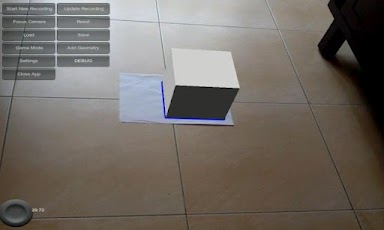
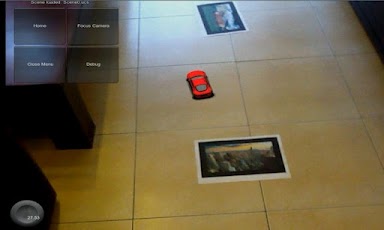
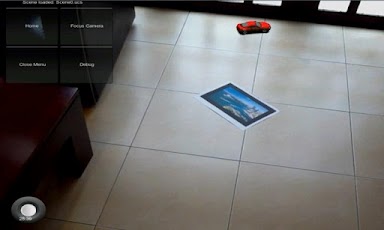
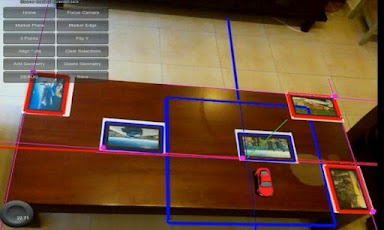
This App requires you to print out some markers.UCS AR is a tech demo which uses a free and open source software package called UCS (Unified Coordinate System) to increase the playfield size of an Augmented Reality game. All AR games which use markers for tracking require you to keep the marker in view to prevent the 3d content from disappearing. The problem with this is that the playfield size is quite small. UCS solves this problem by enabling you to add more markers to the scene. As long as there are one or more markers in view, the 3d content will be visible. Another problem with most AR games is that they do not interact with the physical surroundings. UCS solves this problem by enabling you to add geometry which will be invisible during game play but will interact with the 3d content in terms of physics and occlusion.Usage:-Go to "Settings", and select "Use Frame Markers" or "Use Image Targets". Frame markers are the square markers with a binary code at the edge. Image Targets are the rectangular markers with a black border and an image in the centre. When finished, click Home.-Point the camera at one or more markers and press "Start New Recording". The application doesn’t record a video but it records the relative position and orientation between each marker. Slowly bring one or more markers into view. If you use multiple markers, make sure you always have at least two markers in view at any time. Select one horizontally placed marker by tapping within the blue outline. This will be the reference marker. This marker is used as the game origin and the direction of gravity. When finished, press "Stop Recording".-Save the scene. The file name will determine which 3d content will be shown. If you want to show the car, name the scene "scene0". The extension for the scene is *.ucs but this will be automatically added. If you save the scene as "scene1" you will see a deformed video texture special effect in Game Mode.-Now you have to add geometry to the scene to make the 3d scene interact with the real world. Press "Add Geometry" to do this. Select a marker and press "Add Plane". Select one or more axis to move the geometry around or pinch to scale. This way you can align the plane with the ground, walls, etc. You can also add constraints to place the geometry. Visit the link below for more information. When finished click Save, then Home.-Click "Game Mode". If you saved the scene as scene0 you should now see a car which you can drive around with the touch pad joystick on the lower left. If the car keeps falling through the ground, be sure to add geometry.Forum discussion and source code:https://ar.qualcomm.at/arforums/showthread.php?t=1030Markers:http://pilotpage.monosock.org/fileadmin/files/Markers.rarManual:http://pilotpage.monosock.org/fileadmin/files/ucs_manual.pdf
App Screenshots
Other Arcade & Action Apps