| Price | Free |
|---|---|
| Category | Transportation |
| Version | 1.2 |
| Developer | Augmented Views |
| Added | Apr 20th, 2012 |
| App Views | |
| Votes | 0 votes |
| Google Rating | |
| Ratings | 29 |
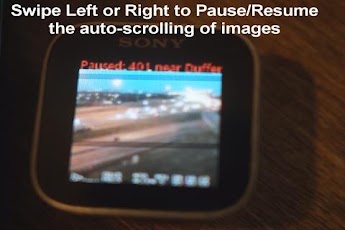
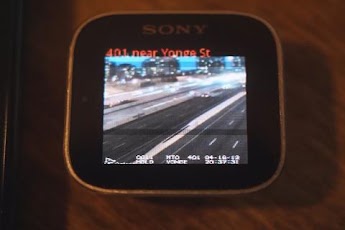
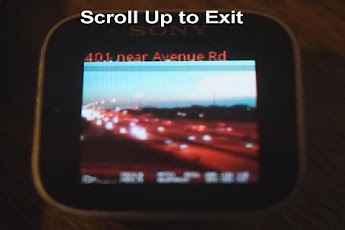
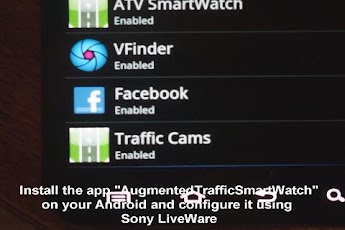
Check out the awesome Top 50 Producitiity App – Augmented SmartWatch Pro app also for the Sony SmartWatch.Trial version @ http://bit.ly/11pnamXAugmentedTrafficSmartWatch is a LiveWare extension for SmartWatch. It will automatically show real-time traffic camera images based on your current location of your Sony SmartWatch.Prerequisites to using: Android smart phone; Sony SmartWatch Sony LiveWare app running on Android AugmentedTrafficSmartWatch 1.0 or later from market AugmentedTrafficViews 3.7 or later from market – note it is possible to run without this app, but it would only be for a limited set of images or if you wish you can customize the images to display with your own (e.g. home security monitoring)Note traffic camera data is only relevant for selected areas in the UK, US and Canada. Real estate data is for Canada.The app has three running modes: Mode 1) Preset mode – you can use Augmented Traffic Views to automatically set the traffic camera presets (or, optionally you can create your own alk8.txt file as described below to cycle through your own images – for example your home security cameras, etc). Mode 2) Closest mode – Uses current location to figure out closest traffic camera images (requires Augmented Traffic Views to be installed); I could allow for a second user-customized selection of images instead as an option here – email me if you think it useful (right now if you do NOT have Augmented Traffic Views installed then you will never get to this mode) Mode 3) Real-Estate mode – Uses current location (also required Augmented Traffic Views to be installed). I could easily change this to a 3rd custom stream, if there is demand for this.User Commands: Swipe Up – Exit Swipe Down – Switch between modes (preset->closest->Real Estate) Swipe Right – Pause/Resume auto-scrolling – regardless of mode Swipe Left – if in real estate mode, will show more details on phone in browser, else will toggle auto-scrolling.Requires Version 3.7 of Augmented Traffic Views Menu -> more -> SmartWatch – Save Closest use this command to save the current location for the preset mode (and the 10 cameras around your current location will be saved)Tip: I suggest you set the presets when you are driving away from your current desired area of interest and to use smart mode enabled within the Augmented Traffic Views app. This will then allow you to see automatically the traffic cameras that you always pass by when you drive home (or whatever the desired location you want to preset to). This way you only see the cameras that you actually pass by (rather than all cameras around the location, that you may not pass by). This is one key benefit of enabling Smart Mode (which is set enabled by default) within the Augmented Traffic Views app (not a widely known feature in the app).Customization: If you want to show your own images from the internet, you can. The local file File(Environment.getExternalStorageDirectory() + "/alk8.txt" can be used to store user generated images as follows: each image has two lines: Line 1 – Name of image (or location) – shown at top of display on Sony SmartWatch Line 2 – URL of image repeat the two lines for each image to display – app will read in data for a maximum of 20 images.Note: This application will not be shown on your phone application screen. Access application settings via LiveWare
App Screenshots
Other Transportation Apps